In this article 8 sections
- First, write down the first 8 characters of the key ID on the recovery screen
- Step 1: Find it in your Microsoft account
- Step 2: Find it in your work or school account
- Step 3: Check printed copies, USB drives, and text files
- What to check if you still cannot find it
- Do this in advance: Back up the key in at least two places
- Summary: The search order and precautions
- References
It is easy to panic when a screen asks you to enter a BitLocker recovery key on a PC with BitLocker enabled. The recovery key is a 48-digit number needed to regain access to the drive when BitLocker cannot unlock it automatically. Based on two official Microsoft support articles, this article explains where to look for the recovery key and in what order. It is not the result of reproducing the process on an actual PC.
First, write down the first 8 characters of the key ID on the recovery screen
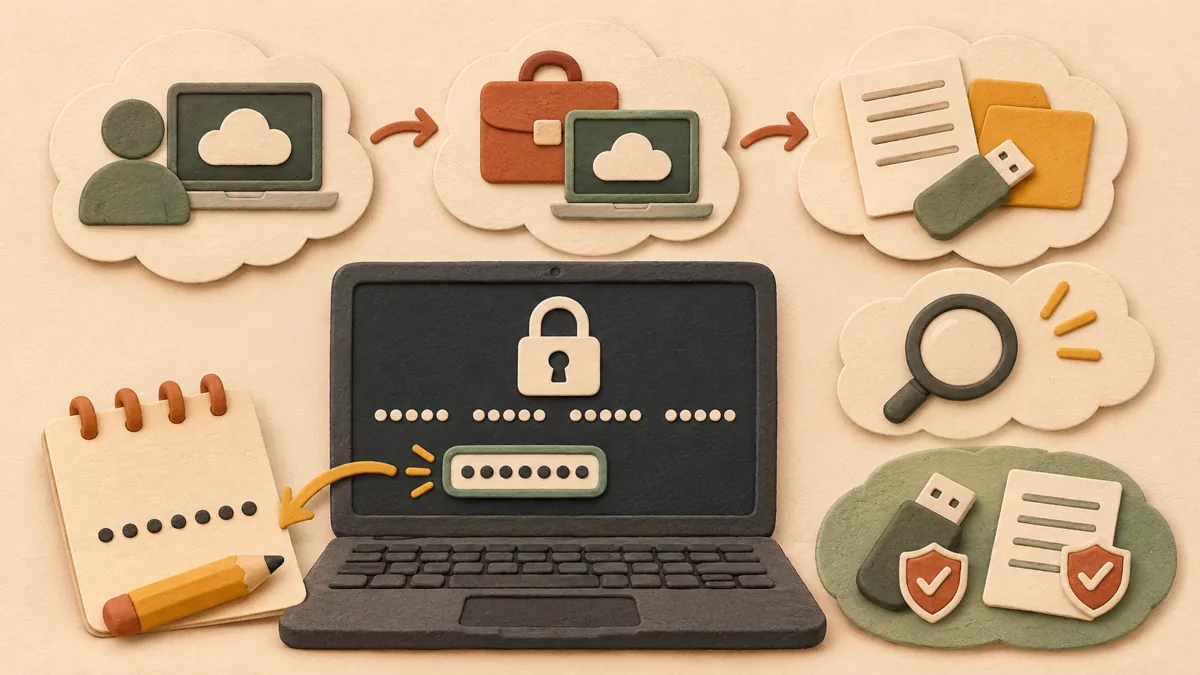
The recovery screen shows a key ID paired with the recovery key. Microsoft instructs users to write down the first 8 characters of this ID. When multiple keys have been backed up, this helps determine which key to use. Writing down the key ID first makes it easier to find the matching entry in the steps below.
Step 1: Find it in your Microsoft account
On a browser on another device, go to https://aka.ms/myrecoverykey and sign in with the same Microsoft account. Find the entry with the matching key ID in the list and use that key. Starting with Windows 11 24H2, the recovery screen may display a hint for the Microsoft account connected to the key, providing a clue about which account to check. If someone else set up the PC, the key may be in that person's account.
Step 2: Find it in your work or school account
If you have ever signed in to the PC with a work or school account, the key may be stored in the organization's account. At https://aka.ms/aadrecoverykey, sign in with that account, select the device, and then choose View BitLocker keys. Find and use the entry matching the key ID. If you cannot view it yourself, asking your IT administrator is the prescribed procedure.
Step 3: Check printed copies, USB drives, and text files
You may have printed the key or saved it to a USB drive or text file when enabling BitLocker. Look for the printed copy where you keep important documents, and connect the USB drive to the locked PC and follow the on-screen instructions. Open the text file on a device other than the locked PC to check the key. Microsoft recommends not storing the USB drive with the PC.
What to check if you still cannot find it
Microsoft Support also states that it cannot find or recreate a lost BitLocker recovery key. For a company device, the IT department is likely to be the place to check. If it is a personal PC and you cannot find the key anywhere, first consider whether you can undo the change that caused the key to be required. If you cannot undo it, you must reset the device using Windows recovery options, and resetting it deletes all files.
Do this in advance: Back up the key in at least two places
Search for BitLocker from the Start menu, open Manage BitLocker, and select Back up your recovery key for the relevant drive. You can choose a Microsoft account, USB drive, text file, or printout as the storage location, and you can back it up in multiple places. However, you should not keep the USB drive with the PC, and because a text file cannot be saved on an encrypted drive, you must save it to another drive or a USB drive.
Summary: The search order and precautions
Checking the key ID on the recovery screen, followed by your Microsoft account, work or school account, and printed copy, USB drive, or file will narrow down the possibilities in most cases. Do not copy the recovery key into a blog or messenger. The recovery key is the key to unlocking the drive, so it must not be posted publicly. Related article: How to sign in again when you forget your Windows PIN: 3 reset paths ↗
References
Microsoft Support: Find your BitLocker recovery key ↗
Microsoft Support: Back up your BitLocker recovery key ↗
Sources and original article
Read the Korean original on Naver ↗
This article reflects public information available when it was written. Specifications, prices and schedules can change; check the linked official documentation.
This English edition was written and translated with AI assistance, with sources provided. For errors or additional information, please request a correction. Editorial policy