In this article 7 sections
- 1. Check Undo immediately after sending
- 2. Choose 5, 10, 20, or 30 seconds for the cancellation period
- 3. Example: Sending an email with a typo
- 4. What to do after the time has passed
- 5. Scheduled sending and Undo Send are different features
- 6. Three things to check before changing the setting
- Reference materials
It is easy to panic when you notice a typo or the wrong recipient immediately after sending an email in Gmail. Gmail has an Undo Send feature that briefly holds the email instead of sending it immediately. This feature does not recall an email that has already been delivered; it only lets you cancel the message for a short time immediately after sending. This article explains how to set the cancellation period based on Google Help and what to do after that time has passed.
1. Check Undo immediately after sending
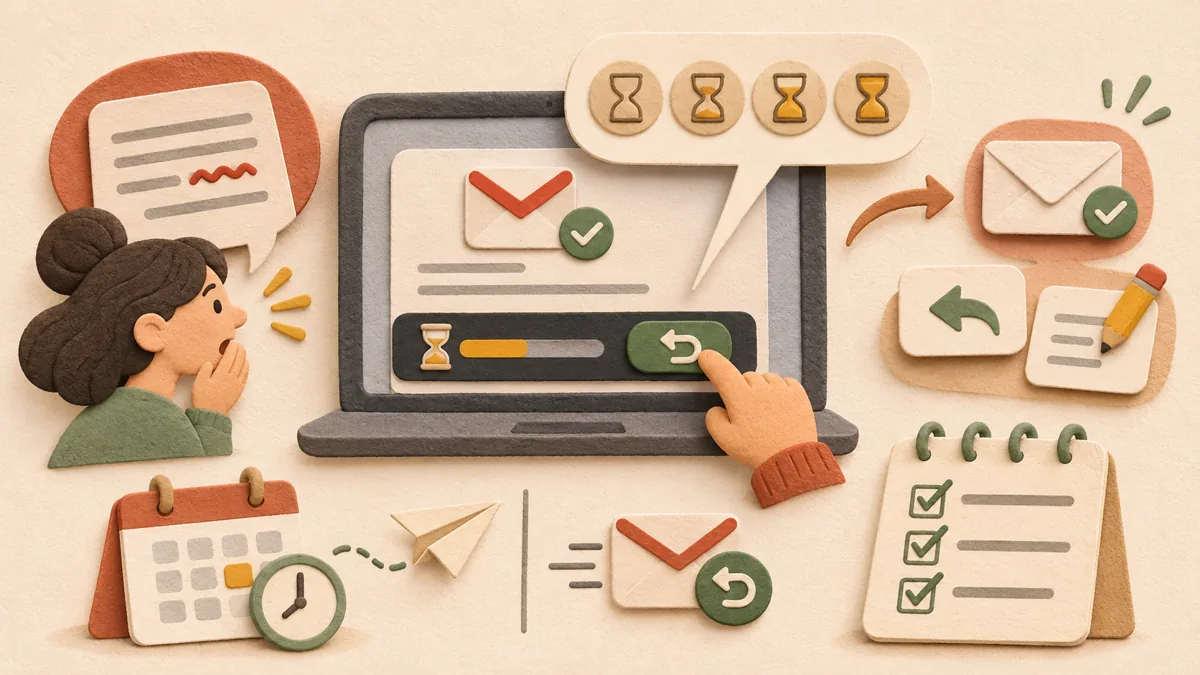
After you send an email, the message “Message sent” appears in the lower-left corner of the screen, along with the options “Undo” or “View message.” If you notice a mistake, click “Undo” immediately. Google Help also explains that you can cancel sending only shortly after sending the message. Therefore, it is most important to make a habit of checking the screen immediately after sending.
2. Choose 5, 10, 20, or 30 seconds for the cancellation period
Open Gmail in a PC browser, click the Settings icon in the upper-right corner, and select “See all settings.” Next to “Undo Send,” choose 5, 10, 20, or 30 seconds, then click “Save Changes” at the bottom. Setting a longer period gives you more time to undo a mistake. However, understand that the message is actually sent after that period has passed. If the recipient needs to receive the email quickly, a long delay may feel inconvenient.
3. Example: Sending an email with a typo
Here is a hypothetical example. Suppose you send an email with the subject “Meeting minutes” mistyped as “Meeting minites.” If you click “Undo” while it is visible, sending is canceled and you can correct the email. Conversely, if the “Undo” option has disappeared, assume that the email has already been sent and move to the next step. Checking whether the email is in Sent also makes it easier to determine its status.
4. What to do after the time has passed
An email whose Undo Send period has ended cannot be reversed using this feature. In that case, the practical approach is to send the recipient a brief correction email. If important information such as an amount, date, or attachment is incorrect, state the correction clearly in one line. If sensitive information was sent incorrectly, you can also ask the recipient to delete the email. To reduce the chance of repeating the same mistake, consider filling in the recipient field last for important emails.
5. Scheduled sending and Undo Send are different features
Undo Send is a safety feature available for a short time immediately after sending. Scheduled sending, on the other hand, is a separate feature that sets the sending time for later. If you schedule an email to be sent at 9:00 a.m., it waits until the scheduled time and is then sent. For the conditions and instructions for scheduled sending, follow Google’s “Schedule emails to send” Help page. Confusing the two features can lead to the mistaken belief that “Since I scheduled it, I can cancel it later.”
6. Three things to check before changing the setting
First, the setting location described here is based on Gmail on the PC web. The menus in the mobile app may vary depending on the device and app version, so rather than relying on the displayed wording exactly, look for “Undo Send” in Settings and confirm it. Second, the cancellation period applies to new emails across the account, so changing it once affects all emails sent afterward. Third, even if you set a longer period, continue making a habit of checking the attachment and recipient address once more before sending. If you skip checking because you rely only on the time available to undo, you may ultimately have to send a correction email.
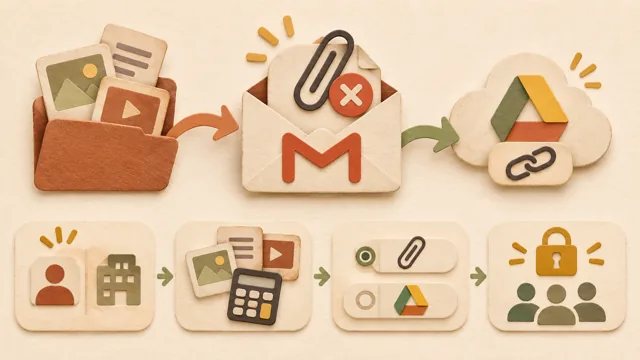
If you are also experiencing attachment-size issues with the same Gmail account, you may find How to send a Drive link when a Gmail attachment exceeds the size limit ↗ helpful.
Reference materials
Google Help: Send or unsend Gmail messages ↗
Google Help: Schedule emails to send ↗
Sources and original article
Read the Korean original on Naver ↗
This article reflects public information available when it was written. Specifications, prices and schedules can change; check the linked official documentation.
This English edition was written and translated with AI assistance, with sources provided. For errors or additional information, please request a correction. Editorial policy

 Google tools