In this article 7 sections
- 1. Distinguish blocking from reporting spam first
- 2. Block a sender in Gmail on the web
- 3. How to unblock a sender from the blocked list
- 4. Example: Messages from a business contact still go to Spam after unblocking
- 5. What to know before reporting spam
- 6. How to choose based on the situation
- References
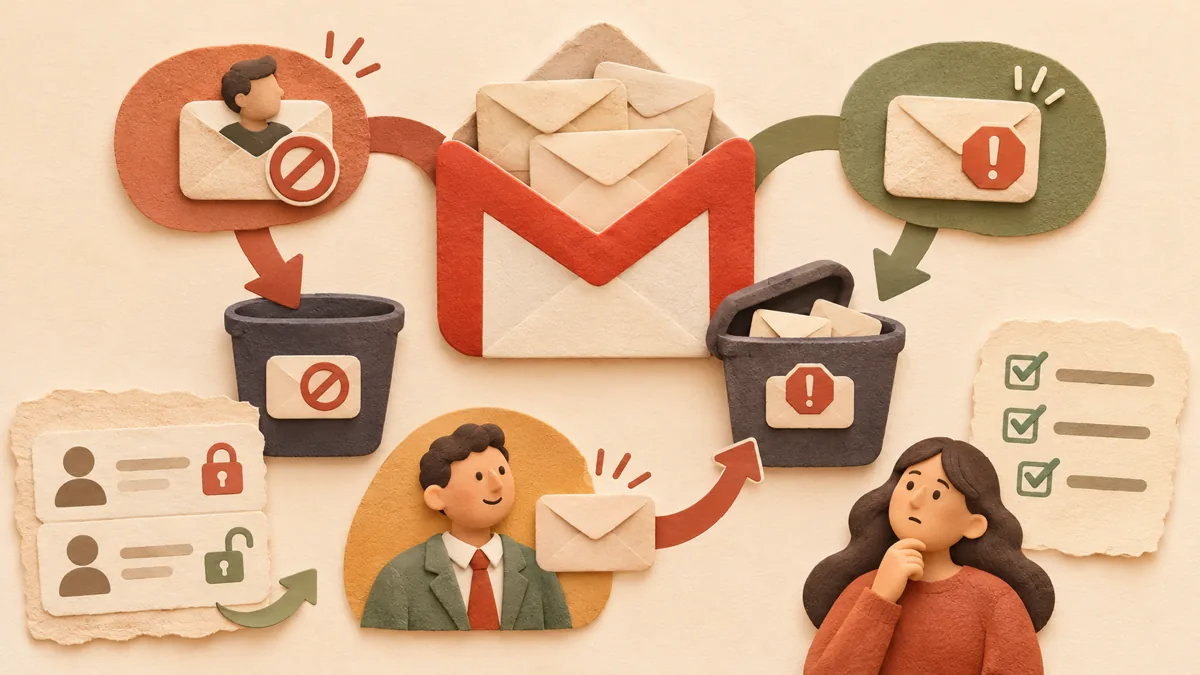
When unwanted emails keep arriving in Gmail, it can be confusing whether to block the sender, report spam, or delete the messages. The three methods produce different results. Blocking a sender sends future messages from that sender to Spam, while reporting spam moves the currently selected message to Spam. Based on Google Help, this article distinguishes the two features and organizes what to check when messages still go to Spam after blocking a sender.
1. Distinguish blocking from reporting spam first
According to Google Help, blocking a sender moves emails from that sender to Spam. Reporting spam puts the selected email in Spam, and a copy of the reported message is sent to Google for analysis. Therefore, if you only want to remove one message, deleting it or reporting it as spam is appropriate; if you want future messages from that sender to go to Spam, blocking is appropriate. Mixing up the two features could cause important messages from business contacts to accumulate in Spam.
2. Block a sender in Gmail on the web
On a computer, open Gmail and open a message sent by the sender. In More next to Reply at the top right, click “Block [sender name].” To unblock the sender, click “Unblock” in the same location. You can check blocked addresses under Settings > See all settings > Filters and Blocked Addresses.
3. How to unblock a sender from the blocked list
If you can no longer find the sender’s messages, open the Filters and Blocked Addresses list in Settings. Select the checkbox for the address you want to unblock and click “Unblock selected addresses.” Google Help explains that after you unblock a sender, future messages from that sender will go to your inbox. Because messages already in Spam are not guaranteed to return automatically, it is safer to check Spam separately for any messages you need.
4. Example: Messages from a business contact still go to Spam after unblocking
This is a hypothetical example. Suppose messages from a business contact still go to Spam after you unblock the sender. First, select the message in Spam and click “Not spam.” Next, add the contact’s address to Google Contacts. The help page explains that adding a sender to your contacts prevents messages from that sender from going to Spam. Finally, enter the address in the From field under the search options, search for it, and then select “Never send it to Spam” under Create filter at the bottom of the search box. These are the three steps to follow in order when the same problem remains after unblocking a sender.
5. What to know before reporting spam
The help page explains that when you report spam or move a message to Spam, a copy of the email is sent to Google for analysis to help prevent spam and abuse of the service. Reporting applies to the selected message. If you want to block the entire sender, you must choose blocking separately. For suspicious messages that request personal information, it is best to follow the phishing-reporting procedure provided in Google Help.
6. How to choose based on the situation
If you only want to remove one message, delete it. If a message appears to be spam, report it as spam. If you want to block messages from one sender in the future, choose blocking. If a blocked sender’s messages later become important, click Unblock; if they still go to Spam, check in this order: mark them as not spam, add the address to your contacts, and create a filter. Settings locations and menu wording may vary by Gmail version and device, so follow the labels shown on your screen.
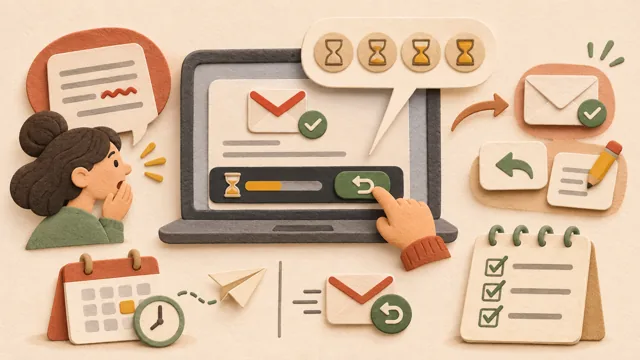
If you are wondering how long you have to undo a sent message in the same Gmail account, see How to cancel a sent Gmail message ↗. To sort received messages using rules, How to automatically sort receipt emails with Gmail filters ↗ may also be useful.
References
Google Help: Block or unblock email addresses in Gmail ↗
Google Help: Report spam in Gmail ↗
Google Help: Fix incorrect emails in Spam ↗
Sources and original article
Read the Korean original on Naver ↗
This article reflects public information available when it was written. Specifications, prices and schedules can change; check the linked official documentation.
This English edition was written and translated with AI assistance, with sources provided. For errors or additional information, please request a correction. Editorial policy

 Google tools