 Google tools
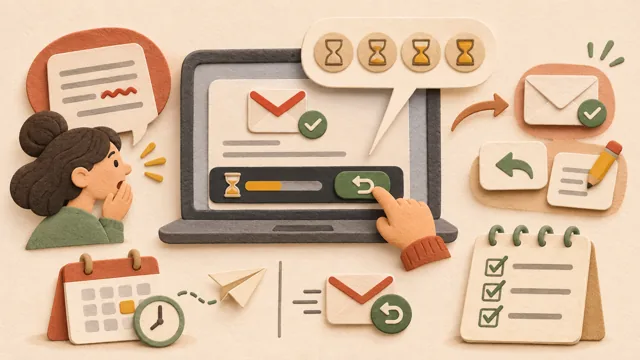
Gmail Undo Send: set your cancellation window
Gmail’s Undo Send feature lets you cancel a message for a short time immediately after sending, but it does not recall a message that has already been delivered.
 Seongwoo Choi · 3 min read
At a glanceGmail’s attachment limit for personal accounts is 25 MB. When the total exceeds the limit, Gmail removes the file and replaces it with a Google Drive link; this guide explains how to check the limit and choose the right method.
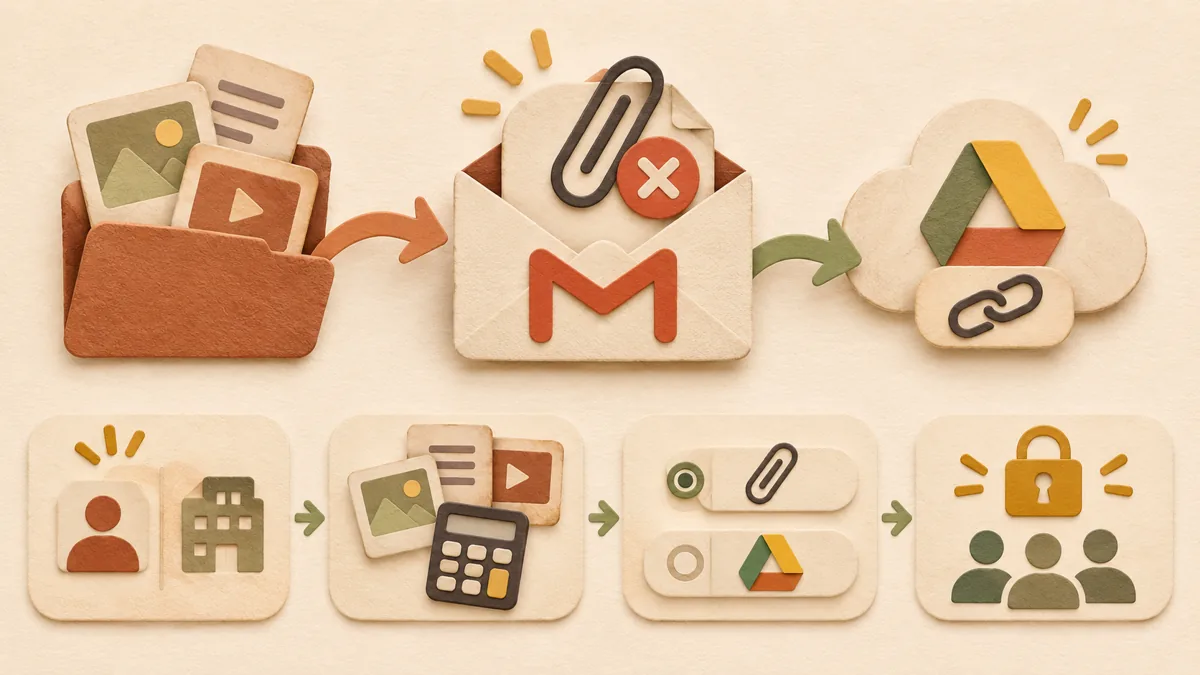
Sometimes Gmail shows a size-limit notice after you try to send a file, or the email is sent without the attachment. The attachment limit for personal Gmail accounts is 25 MB. Google explains that when the total attachment size exceeds the limit, Gmail removes the file from the email and replaces it with a Google Drive link. This article outlines how to check the limit and decide whether to use a direct attachment or a Drive link. This is a checklist based on Google’s support documents, not a result tested with actual emails.
Personal Gmail accounts have an attachment limit of 25 MB. For Google Workspace accounts provided by a company or school, the administrator sets separate sending and receiving limits. The result may differ for the same file depending on the account, so if you are using a company account, check the limit set by the administrator first.
Google describes the limit based on the total attachment size, not the size of each individual file. Several files may exceed the limit even if each one is small. Check whether the combined size of all the files you plan to send is 25 MB or less. For large files such as videos, using a Drive link is safer.
If the total is within the limit, upload the file using the Attach button at the bottom of the compose window. If it exceeds the limit, choose the file under Insert files using Drive at the bottom of the compose window, then select Drive link. Files created with Google Docs, Sheets, or Slides cannot be attached directly and can only be sent as Drive links.
When you choose a Drive link, Gmail checks whether the recipients can access the file. If they do not have access, a notice appears asking you to change the sharing settings. If you choose 'Anyone with the link,' you can select Viewer, Commenter, or Editor. To make the file visible only to the email recipients, click 'More.' In this case, people without a Google account cannot open the file. If the email is forwarded or participants are added, the same permissions as those given to the original recipient apply, so see Google Drive sharing link permissions for information on distinguishing permissions.
Attachments use the Google storage space shared by Gmail, Drive, and Photos. When storage is full, you cannot send or receive files. If an email will not send, check storage usage first; methods for organizing large attachments are described in Google storage cleanup . If the recipient uses a company account, that organization’s receiving limit may be lower.
① Check whether the account is personal or a company account. ② Calculate the total size of the attachments. ③ If the total is 25 MB or less, attach the files directly; if it exceeds 25 MB, use a Drive link. ④ Choose Drive link permissions according to the recipients. ⑤ Check the Sent folder to confirm that the attachment or Drive link was actually included.
The official sources consulted are Google Support: Send attachments with your Gmail message and Google Support: Send Google Drive attachments in Gmail . Menu names may vary depending on the account language and screen size, so check them together with the English names.
Read the Korean original on Naver
This article reflects public information available when it was written. Specifications, prices and schedules can change; check the linked official documentation.
This English edition was written and translated with AI assistance, with sources provided. For errors or additional information, please request a correction. Editorial policy
Found this useful? Share it, or follow for new guides.
Google toolsGmail’s Undo Send feature lets you cancel a message for a short time immediately after sending, but it does not recall a message that has already been delivered.
 Google tools
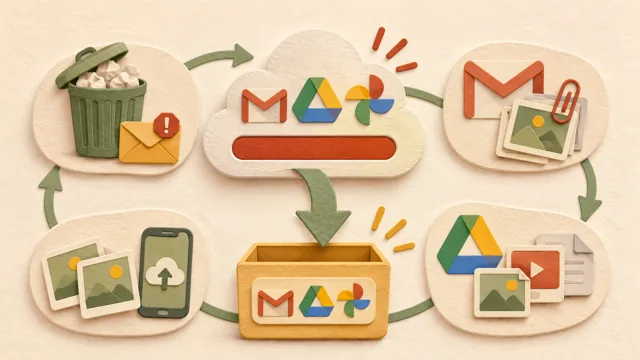
When Google account storage is full, Gmail, Drive, and Photos can stop working together; this guide follows Google Drive Help’s order for checking and deleting items, with menu names varying by device and app version.
 Google tools
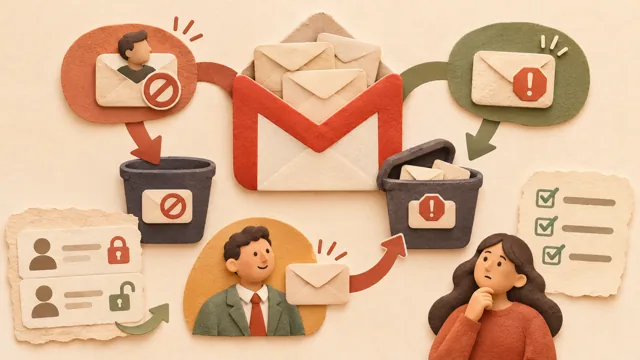
Gmail sender blocking and spam reporting produce different results; this article explains how each works and what to check when messages still go to Spam after a sender is unblocked.