In this article 6 sections
- 1. Empty the trash and spam first
- 2. Find large attachments in Gmail
- 3. View large files in Drive by size
- 4. Check duplicate files and device backups
- 5. If space is still insufficient, consider a paid plan last
- Summary: The deletion order
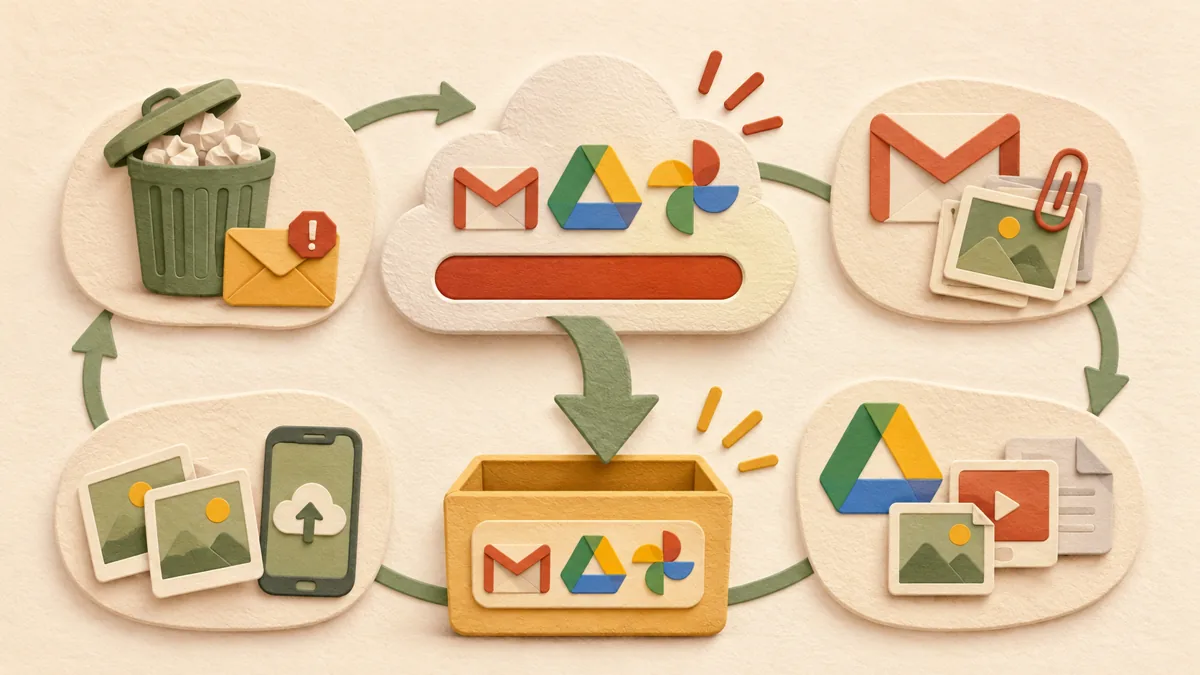
When Google account storage is full, Gmail sending and receiving, Drive file uploads, and Photos backups stop together. This article organizes what to check and delete first, based on the storage management order in Google Drive Help. It is not the result of directly testing a specific account, and menu names may vary by device and app version.
1. Empty the trash and spam first
Gmail spam and trash, Drive trash, and Google Photos trash continue to occupy storage until they are emptied. This is the fastest way to reclaim space. The figure may not decrease immediately after emptying them, so if the account is still full after about 30 minutes, move to the next step.
2. Find large attachments in Gmail
Enter has:attachment larger:10M in the Gmail search box to find messages with attachments larger than 10MB. To see only PDFs, enter filename:.pdf larger:5M. Attachments in messages more than 2 years old can be found with older_than:2y has:attachment. Before deleting messages, check whether the attachments are still needed, and empty the trash afterward for the storage usage to decrease.
3. View large files in Drive by size
Open “Storage” in Drive’s left-hand menu to list files from largest to smallest. Videos, installation files, and old exported files often stand out. Google Help explains that only files you own count toward your storage. Therefore, deleting files shared by other people will not reduce your space, so first check who owns each file.
4. Check duplicate files and device backups
Drive has no tool that automatically finds duplicate files. Sort by name, then find files with “(1)” or “Copy” added to their names manually. Check device backups under the backup section of the Drive screen. Android WhatsApp backups also use Google account storage. In WhatsApp settings on the device, first turn off the option to include videos, then delete the existing Google backup so backups do not build up again. Deleting a backup is permanent, so check first if you plan to change devices.
5. If space is still insufficient, consider a paid plan last
If the account is still full after cleanup, you can increase storage with a paid Google One plan. However, purchasing is a spending decision, so this article does not recommend buying one. With company or school accounts, individuals cannot purchase additional storage and must ask an administrator. After purchase, it may take up to 24 hours for the new storage capacity to be reflected.
Summary: The deletion order
The order is to empty trash and spam, check large Gmail attachments, organize Drive by size, check duplicates and backups, and consider a paid plan only if space is still insufficient. Before deleting anything, open the file to check its contents, and copy important materials elsewhere before deleting them. To also reduce space on a PC, see The order for separating temporary files and personal files when Windows storage is low ↗. If you are confused about shared-file permissions, see The article distinguishing Google Drive shared-link permissions ↗.
Source: Manage your storage in Drive, Gmail & Photos (Google Drive Help) ↗, main text checked on October 29, 2026 KST. Search operators and menu names are based on Help and may differ from the actual account screen. This is not the result of testing a specific account.
Sources and original article
Read the Korean original on Naver ↗
This article reflects public information available when it was written. Specifications, prices and schedules can change; check the linked official documentation.
This English edition was written and translated with AI assistance, with sources provided. For errors or additional information, please request a correction. Editorial policy

 Google tools