In this article 5 sections
- 1. Check the difference between mirroring and streaming
- 2. Mark files for offline use on Windows
- 3. Set up Google Docs, Sheets, and Slides in a browser
- 4. Understand the risk of conflicts in offline edits
- 5. Checklist before setup
You may want to open Google Drive files in places without an internet connection, such as on the subway or an airplane. In short, first check whether Drive for desktop mirrors or streams files, then mark only the files and folders you absolutely need to open without internet access for offline use. This article is organized based on official Google Help. I should first clarify that this is not the result of testing the settings on an actual device.
1. Check the difference between mirroring and streaming
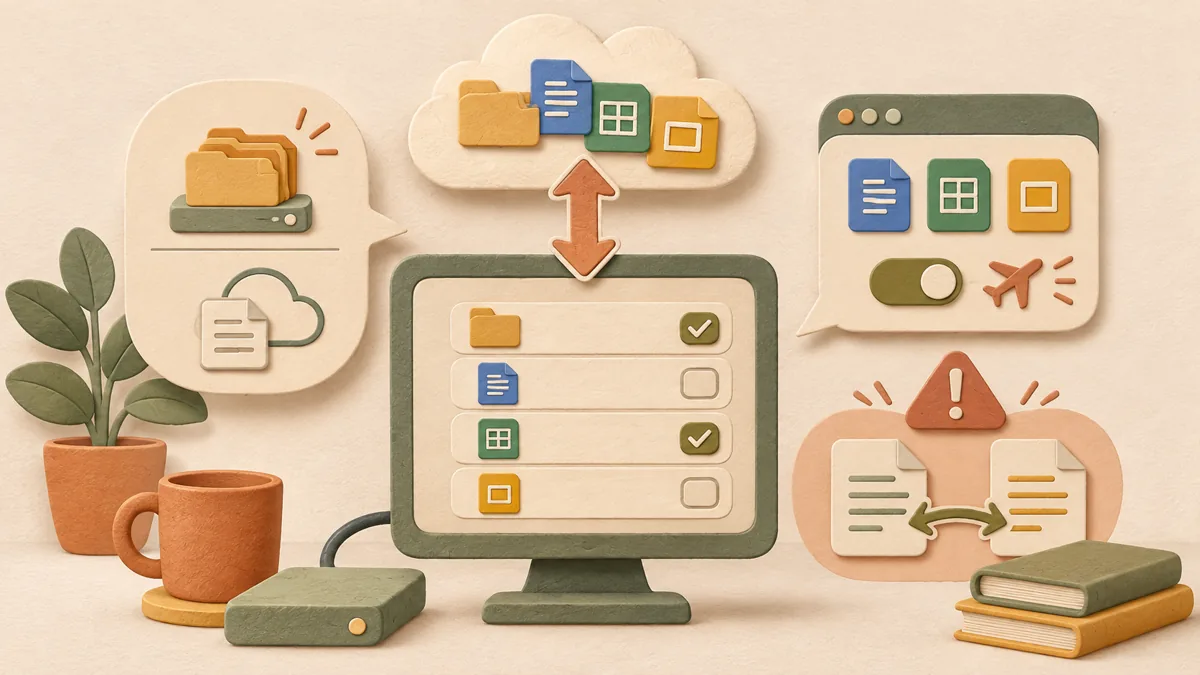
Drive for desktop stores files in two ways. Mirroring means that files and folders exist both in the cloud and on the computer. The copies on the computer use disk space, but according to the Help documentation, mirrored files are automatically available offline. Streaming means that files are in the cloud, and only files that have been opened or marked for offline use remain on the computer. Files that have not been marked for offline use while streaming require an internet connection to open.
Check the current method in the Drive app's settings screen. Menu names may vary depending on the app version. If you are using mirroring, you do not need the file-by-file settings in step 3 below; if you are using streaming, step 2 is essential.
2. Mark files for offline use on Windows
The official Help procedure for Windows is as follows. ① Open the Google Drive folder in File Explorer. ② Select a file or folder. To select multiple items, click while holding the Shift key. ③ Right-click, select “Offline access,” and choose “Available offline.” ④ When saving is complete, a green check mark appears next to the file.
When you mark a folder for offline use, all files inside it become included. Items added to the folder later will also automatically become available offline. Because this uses additional disk space, check your available space before marking a large video folder in its entirety.
3. Set up Google Docs, Sheets, and Slides in a browser
Set up Google Docs, Sheets, and Slides in Chrome or Microsoft Edge instead of the Drive desktop app. First, at drive.google.com/drive/settings, turn on the checkbox next to “Create, open, and edit your recent Google Docs, Sheets, and Slides files on this device while offline.” Then, at drive.google.com, right-click a file and select “Make available offline.”
4. Understand the risk of conflicts in offline edits
Changes made offline are applied when you return online. However, the Help documentation explains that new changes overwrite previous changes. When multiple people are editing the same document, it is safest to check again in the version history which edits remain. For important documents, open them immediately after going back online to verify their contents.
5. Checklist before setup
① Check whether you are using mirroring or streaming. ② Mark only the files and folders you absolutely need to open without internet access for offline use. ③ Check available disk space before marking a folder. ④ Turn on the separate browser setting for Docs, Sheets, and Slides. ⑤ Remember that disconnecting an account deletes offline copies of streamed files, while mirrored files remain.
Related articles: See Google Drive sharing link permissions article ↗ for viewing and editing permissions for shared links, Google storage cleanup article ↗ for organizing Drive storage, and Gmail attachments article ↗ for sending large attachments as Drive links.
The official source consulted is Google Drive Help: Use Google Drive files offline ↗.
Sources and original article
Read the Korean original on Naver ↗
This article reflects public information available when it was written. Specifications, prices and schedules can change; check the linked official documentation.
This English edition was written and translated with AI assistance, with sources provided. For errors or additional information, please request a correction. Editorial policy