In this article 6 sections
- 1. Open the Trash first
- 2. Select and restore only the files you need
- 3. Distinguish between your files and files shared with you
- 4. Three things to check before permanent deletion
- Checklist
- References
If you accidentally delete a file in Google Drive, check the Trash first. In short, files moved to the Trash can be restored for 30 days. The steps below are based on Google Drive Help, and key points to check before permanent deletion are summarized separately at the end.
1. Open the Trash first
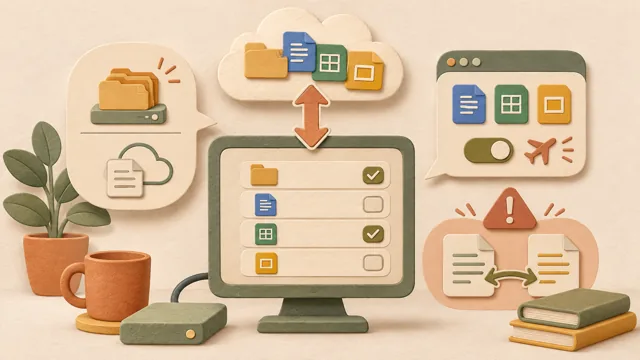
On a computer, go to drive.google.com and click Trash in the left-hand menu. If you do not remember the file name, it may be faster to scan the items in the Trash in order of deletion date.
2. Select and restore only the files you need
Select the file you want to restore and use the restore function. If there are multiple files with the same name, check the modification date and size as well before restoring to make sure it is the file you want. After restoring the file, check My Drive again to confirm that it is in its original folder.
3. Distinguish between your files and files shared with you
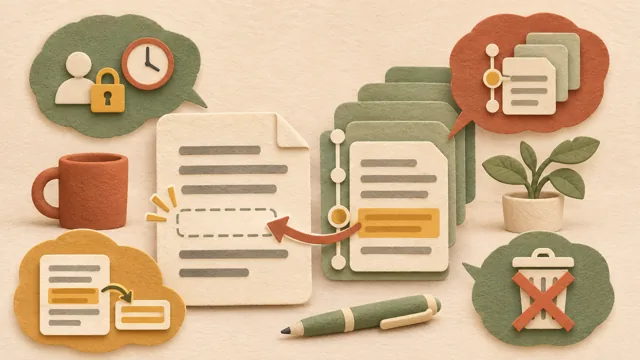
Only the file owner can move a file to the Trash. If you delete a file owned by someone else from My Drive, it disappears only for you, while the owner and other shared users can continue to access it. Therefore, if a file shared with you disappears, it is safest to check with the owner first. For information about distinguishing sharing permissions, see the Google Drive sharing link permissions article ↗.
4. Three things to check before permanent deletion
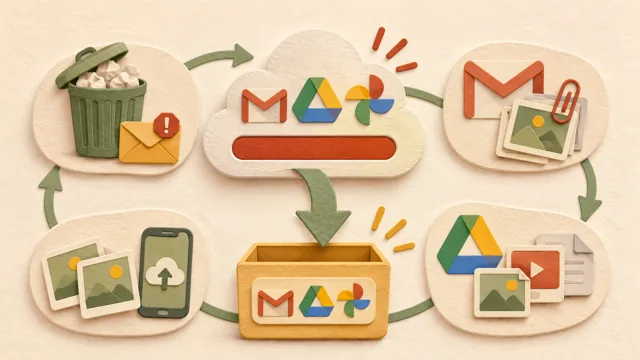
First, files in the Trash still use storage space until they are permanently deleted. Second, emptying the Trash or permanently deleting files cannot be undone. Third, if you are mirroring or streaming with Drive for desktop, files deleted on your computer may also be moved to the Trash in another location, so check your sync settings first. For organizing storage space, also see the article on how to reduce usage when Google storage is full ↗.
Checklist
① Open the Trash at drive.google.com ② Check the file by name, deletion date, and size ③ Check the original folder after restoring ④ Distinguish between your own file and a file shared with you ⑤ Check with shared users and review sync settings before permanent deletion
References
The Google Drive Help: Delete files ↗ page was checked as of November 8, 2026, Korea Standard Time. Menu names may vary depending on the device and screen size. The Windows Recycle Bin and file recovery tools are outside the scope of this article. For related information, also see Steps to recover deleted files in Windows ↗.
Sources and original article
Read the Korean original on Naver ↗
This article reflects public information available when it was written. Specifications, prices and schedules can change; check the linked official documentation.
This English edition was written and translated with AI assistance, with sources provided. For errors or additional information, please request a correction. Editorial policy

 Google tools