AI · Software · Technology
How to recover a mistakenly deleted sentence using Google Docs version history
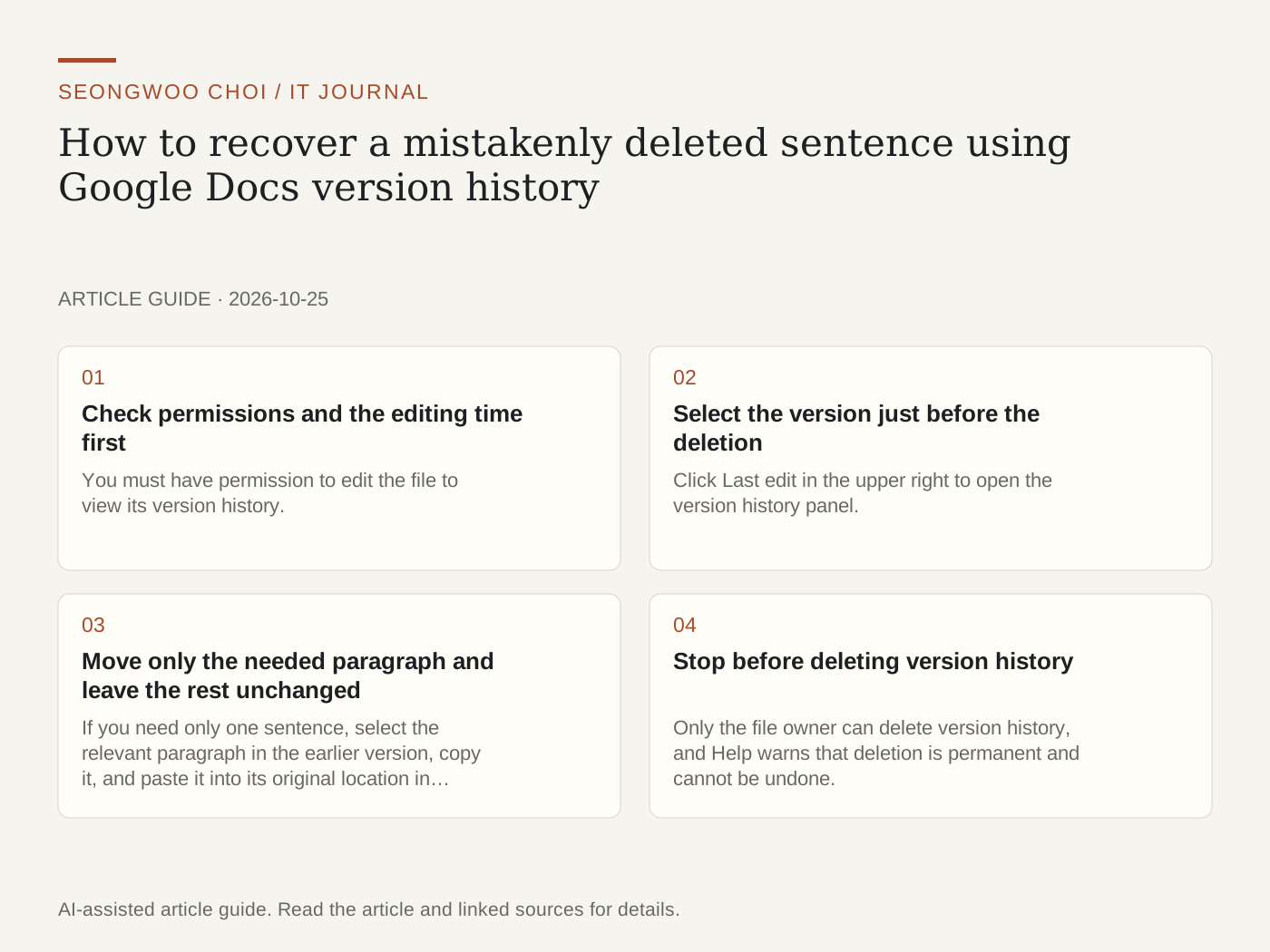
If you discover a sentence was accidentally deleted after multiple saves, Undo (Ctrl+Z) may not be enough. The feature to check in this situation is version history. Based on Google Docs Help, this article organizes the steps to check before recovering a deleted sentence. The steps below are a checklist based on the Help content, not results tested on an actual document.
1. Check permissions and the editing time first
You must have permission to edit the file to view its version history. Help states that you cannot view version history if you do not have permission to edit the file. If you are a viewer or commenter, it may be faster to tell the owner or an editor which sentence to recover and approximately when it was deleted.
Open the document and hover over Last edit in the upper right to see who last edited it and when. Use this to estimate approximately when the deletion occurred. If a blue dot appears on the Last edit icon, it means another user edited the document after you last viewed it.
2. Select the version just before the deletion
Click Last edit in the upper right to open the version history panel. Select and open the version from just before the deletion, then check whether the sentence you want to recover is there. If the correct point in time does not appear immediately, look through several earlier and later versions.
Help explains that multiple versions may be merged, so the expected point in time may not appear in the list. In that case, scan a broader time range and check whether the same sentence remains in another version.
3. Move only the needed paragraph and leave the rest unchanged
If you need only one sentence, select the relevant paragraph in the earlier version, copy it, and paste it into its original location in the current document. After pasting, check whether the font, heading style, and list numbering match the surrounding content. The copied sentence may look slightly different from the original formatting.
If you want to compare the entire document, you can check the Make a copy feature for an earlier version mentioned in Help. However, this article does not explain the detailed steps for that menu because they could not be confirmed in the main Help text.
4. Stop before deleting version history
Only the file owner can delete version history, and Help warns that deletion is permanent and cannot be undone. There are separate functions for deleting history older than a specific version and deleting all history, so it is safest not to delete any version before recovering the sentence.
As a hypothetical example, suppose you deleted the third paragraph of a report around 3 p.m. and made several more changes to other content by 4 p.m. In this case, opening versions from around 3 p.m. onward lets you quickly check whether the paragraph remains. This example is a hypothetical situation for explanation.
Related articles: Read The Difference Between Cloud Syncing and Backup first to help organize how to distinguish document history from file backups. Before changing sharing permissions, also check The Google Drive Sharing Link Permissions Article .
Source: Google Docs Help, 'Find what's changed in a file' (checked October 25th 2026, Korea time). Menu names and screen layouts may change over time.
Sources and original article
Read the Korean original on Naver
This article reflects public information available when it was written. Specifications, prices and schedules can change; check the linked official documentation.
This English edition was written and translated with AI assistance, with sources provided. For errors or additional information, please request a correction. Editorial policy