In this article 5 sections
- 1. Decide first whether the change applies only once
- 2. Check whether the change will continue in the future
- 3. When you need to change the entire series
- 4. What to check when creating a new recurrence rule
- 5. Summary: the order of checks
When you change the time of a weekly meeting or recurring reminder in Google Calendar, a dialog appears asking you to choose among “This event,” “This and following events,” and “All events.” Choosing incorrectly can change past events or apply a change intended for only one occurrence to the entire series. This article explains how to distinguish the options in question order, based on official Google Calendar Help. It is not the result of creating and testing a recurring event in an actual account.
1. Decide first whether the change applies only once
If you are postponing only this week’s meeting by one day because of a holiday or changing only this week’s location, that is a one-time exception. In this case, it is safest not to affect the entire recurring series. For example, if a weekly Monday 10:00 a.m. meeting is moved to 11:00 a.m. only this week, choose “This event.” In its deletion instructions, the official Help explains this choice as “delete only this event and keep the other future events.”
2. Check whether the change will continue in the future
If future events will continue to change—for example, if the same meeting is moved to Thursday afternoon starting next month—choose “This and following events” or “All following.” This choice applies to the selected event and the events after it, while leaving events that have already occurred unchanged. However, the Help warns that when you choose “This and following events” or “All following events” for deletion, the deleted events do not go to the trash and cannot be restored. If deletion is your goal, make a note of any necessary event information first.
3. When you need to change the entire series
“All events” or “All events in the series” applies to both past and future events. It is generally used when correcting information that should be consistent across the entire series, such as the title or location. However, if meeting-minutes links or attachments are connected to past events, open one of them afterward to check how that information appears following the change. The wording in the selection dialog may vary by device and language, so choose based on the text shown on your screen.
4. What to check when creating a new recurrence rule
The official Help explains that recurring events in Google Calendar have a limit of 730 occurrences. If you set an event to repeat daily for a long time or create it without an end date, it may approach this limit, so it is advisable to set an end date or number of occurrences as well. After changing a recurrence rule, open dates several weeks at a time at both the beginning and end of the calendar to quickly find missing events or unusual dates.
5. Summary: the order of checks
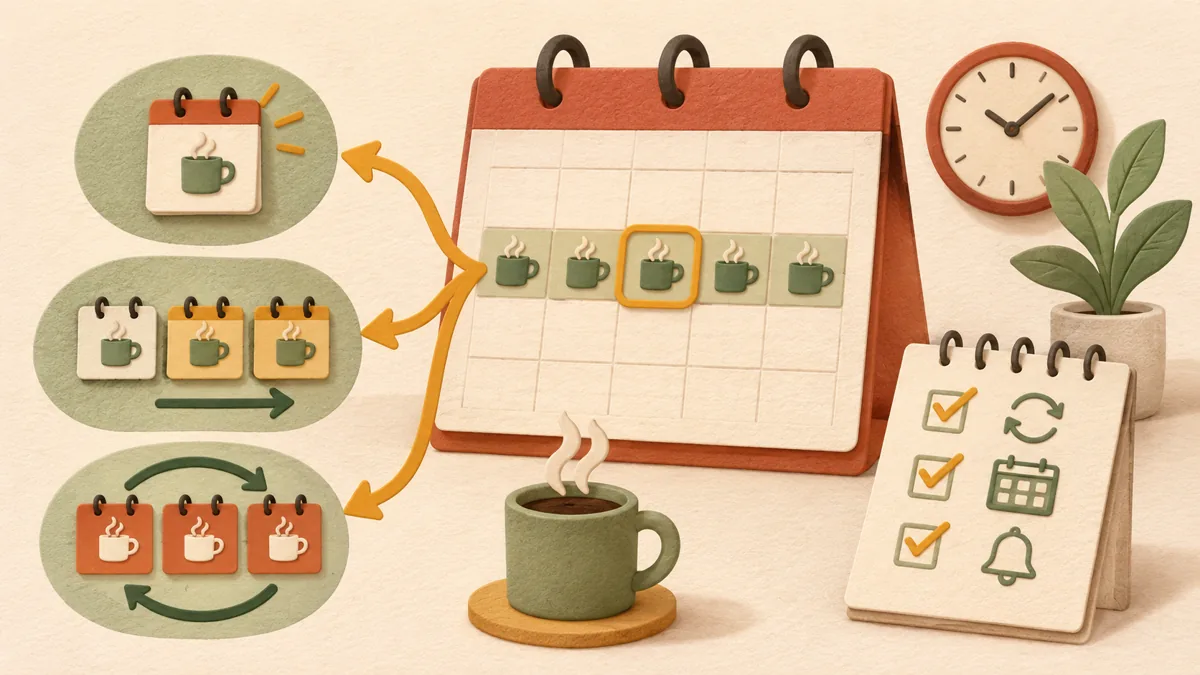
First, determine whether the change applies only once. Second, if it will continue in the future, choose the following events. Third, choose all events only when both past and future events must be changed. Fourth, when deleting, check whether the selected option prevents restoration from the trash. This order can also be organized in the conceptual diagram above.
Related articles: How to check settings when Google Calendar spam invitations are added automatically ↗, How to recover a mistakenly deleted sentence using Google Docs version history ↗
Sources: Create a recurring event - Google Calendar Help ↗, Delete an event - Computer - Google Calendar Help ↗ (checked 2026-11-05 KST)
Sources and original article
Read the Korean original on Naver ↗
This article reflects public information available when it was written. Specifications, prices and schedules can change; check the linked official documentation.
This English edition was written and translated with AI assistance, with sources provided. For errors or additional information, please request a correction. Editorial policy

 Google tools