AI · Software · Technology
What to check when Google Calendar spam invitations are added automatically
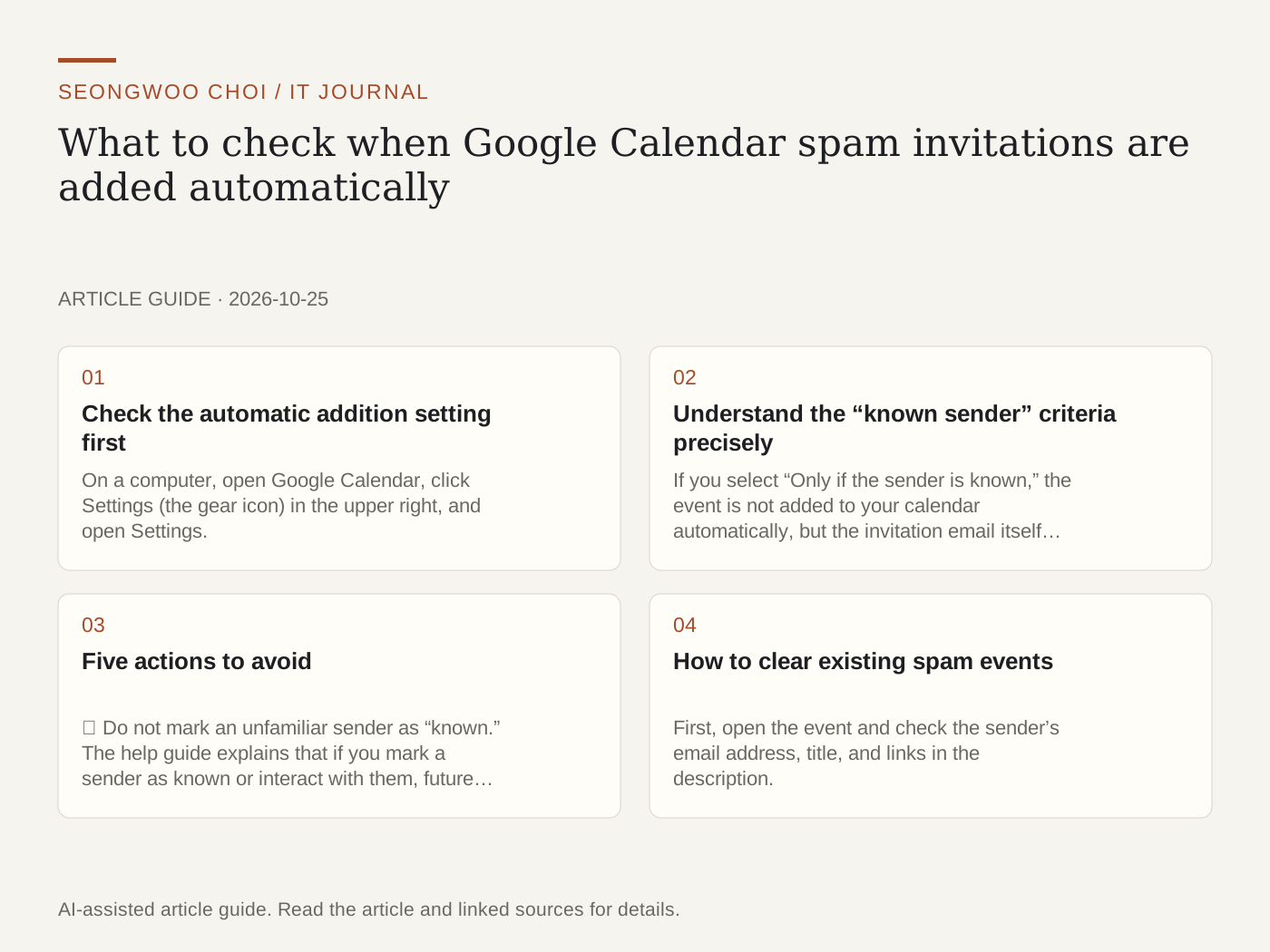
When calendar invitations from unknown people keep appearing, it is easy to miss important events. Google Calendar has a setting that determines which senders’ invitations are added automatically. Based on the Google Calendar Help Center’s “Manage invitations in Calendar” guide, this article organizes the steps for checking the settings and the actions to avoid. This is a checklist based on the help procedure, not a result of testing with actual spam email.
1. Check the automatic addition setting first
On a computer, open Google Calendar, click Settings (the gear icon) in the upper right, and open Settings. Under “General” on the left, click “Event settings” to find the “Add invitations to my calendar” option. It has three choices. “From everyone” automatically adds all invitations. “Only if the sender is known” adds only invitations from people in your contacts, in the same organization, or with whom you have previously interacted. “When I respond to the invitation in email” adds an event only after you respond directly to the email notification.
2. Understand the “known sender” criteria precisely
If you select “Only if the sender is known,” the event is not added to your calendar automatically, but the invitation email itself still arrives in your inbox. Therefore, opening links or attachments in the email remains dangerous. The help guide also explains that this setting change applies only to new invitations. Existing spam events are not automatically removed when you change the setting, so you must delete them separately.
3. Five actions to avoid
① Do not mark an unfamiliar sender as “known.” The help guide explains that if you mark a sender as known or interact with them, future invitations will be added to your calendar automatically. ② Do not open links or attachments in invitation emails immediately. This is a general security practice and is not directly recommended by the help guide. ③ Do not trust or follow phone numbers or payment instructions in the event description. Do not contact unverified numbers or enter personal information. ④ Enable the “Allow users with permission to view or edit my calendar to see all invitations” option only when necessary. According to the help guide, enabling this option lets other users know about invitations that are not yet on your calendar. ⑤ If you accidentally marked someone as known, undo it immediately. The help guide instructs you to go to “Other contacts” at contacts.google.com and delete the contact.
4. How to clear existing spam events
First, open the event and check the sender’s email address, title, and links in the description. If it is not trustworthy, do not click the links; delete the event instead. Because existing events may remain even after you change the automatic addition setting, it is safer to watch for new invitations for several days while clearing existing items one by one. The help guide says that if spam events still appear on an Android device after enabling the setting, you should check which apps can access Calendar.
5. Summarize it as a checklist
① Check the “Add invitations to my calendar” setting. ② Do not open links in invitations from unknown senders or respond to them. ③ Save only essential senders to your contacts. ④ If you accidentally marked someone as known, delete them from your contacts. ⑤ Enable the option that lets others see your invitations only when necessary. ⑥ Check new invitations received after changing the settings.
Note: For work or school accounts, an administrator may have restricted this option. If the option is not visible, check the administrator’s policy. Do not upload invitation screens containing actual addresses or personal information to your blog.
Related articles: How to automatically sort receipt emails with Gmail filters and Article on Google Drive shared-link permissions may also help you organize other Google Account settings.
Source: Google Calendar Help Center “Manage invitations in Calendar” (checked Oct 25th 2026, Korea time). Screen menu names and options may change depending on the time and account type.
Sources and original article
Read the Korean original on Naver
This article reflects public information available when it was written. Specifications, prices and schedules can change; check the linked official documentation.
This English edition was written and translated with AI assistance, with sources provided. For errors or additional information, please request a correction. Editorial policy