AI · Software · Technology
How to automatically sort receipt emails with Gmail filters
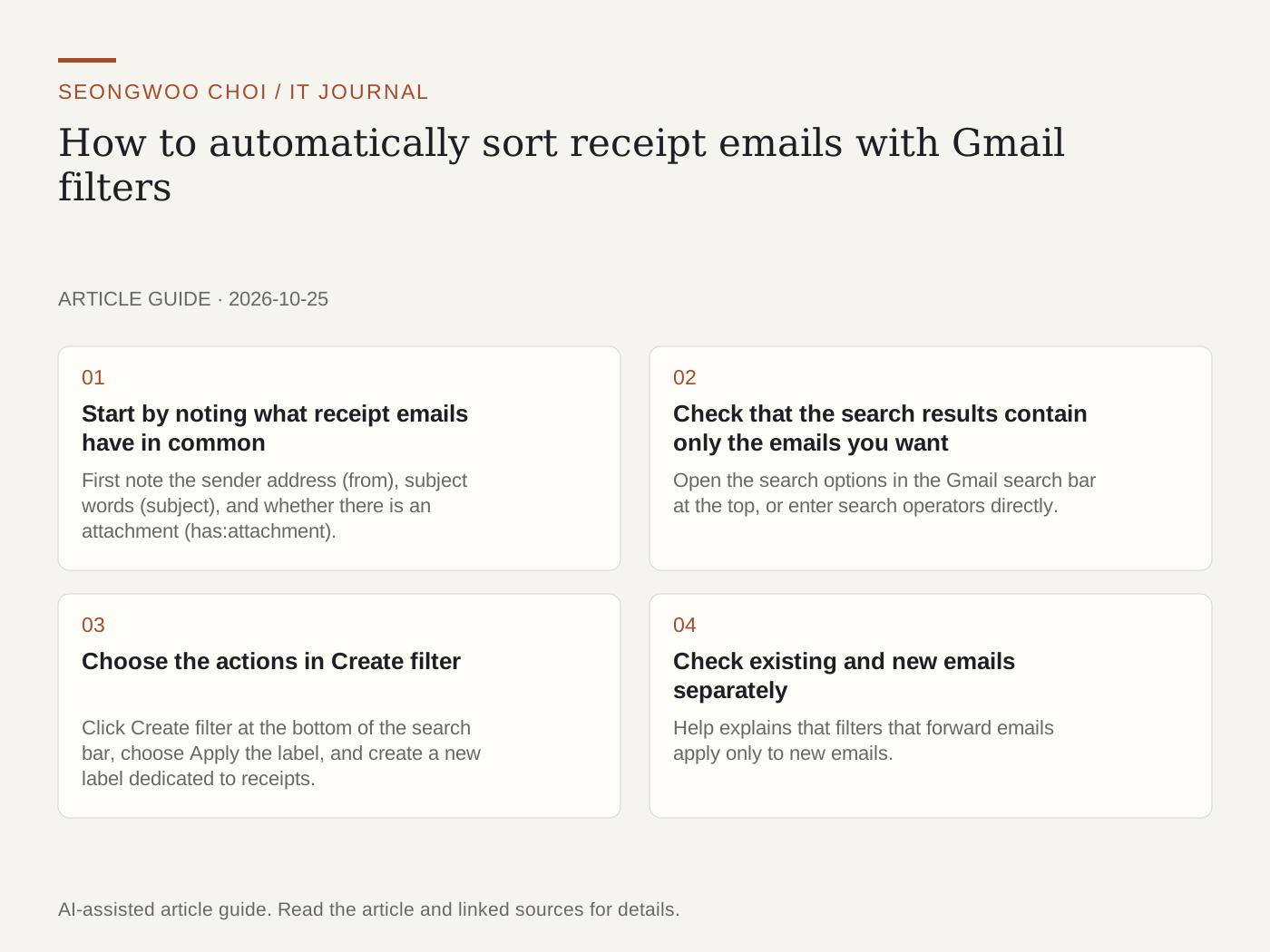
When receipt emails continue piling up in your inbox, it takes time to find the payment details you need. Gmail filters are rules that apply labels to or archive emails matching search criteria. Based on Gmail Help, this article organizes the steps for sorting receipt emails with labels. It is a checklist that converts the Help procedure into a work sequence, not a result tested in an actual mailbox.
1. Start by noting what receipt emails have in common
First note the sender address (from), subject words (subject), and whether there is an attachment (has:attachment). If credit card companies, shopping malls, and subscription services send messages from different addresses, divide the conditions by address. Help also describes how to find emails matching any one of multiple conditions using OR or braces { }.
2. Check that the search results contain only the emails you want
Open the search options in the Gmail search bar at the top, or enter search operators directly. An example is as follows: {from:card@example.com from:shop@example.com} subject:receipt has:attachment. The addresses are placeholders using example.com, so replace them with the actual sender addresses. If advertising emails are mixed into the results, narrow the conditions and search again.
3. Choose the actions in Create filter
Click Create filter at the bottom of the search bar, choose Apply the label, and create a new label dedicated to receipts. You can later view only payment emails together from the label list. Since archiving removes emails from the inbox, it is safer to use it only after confirming that the labels are applied correctly. Deleting and automatic forwarding are excluded from this sequence because mistakes could cause greater harm.
4. Check existing and new emails separately
Help explains that filters that forward emails apply only to new emails. We could not confirm in the body of Help whether label filters also apply to emails already received, so this article does not make a definitive claim. If you want to organize receipts you have already received, create the label and then count them directly in the label list. After opening an email, select its checkbox and click Filter messages like these under More to start with the conditions filled in automatically.
5. How to review and back up existing filters
Open See all settings in Settings and go to Filters and Blocked Addresses to edit or delete existing filters. Clicking Export saves an .xml file, which you can load again with Import filters. You can edit the file with a text editor, but changing the conditions incorrectly could send emails to the wrong label, so keep a separate copy of the file before editing it.
6. Organize the process as a checklist
① Note the sender address and subject words. ② Check that unrelated emails are not mixed into the search results. ③ Create a filter that applies a label. ④ Check the count in the label list. ⑤ Use archiving only after confirming the label.
Caution: Receipts may contain personal information such as order numbers, the last digits of a card, and addresses. Do not capture email bodies for your blog or post actual sender addresses.
Related articles: Google Drive sharing link permissions and Google Docs version history may also help you organize other Google Account settings.
Sources: Gmail Help 'Create rules to filter emails' , Gmail Help 'Search operators' (checked Oct 25th 2026, Korea time). Menu names and screen layouts may change over time.
Sources and original article
Read the Korean original on Naver
This article reflects public information available when it was written. Specifications, prices and schedules can change; check the linked official documentation.
This English edition was written and translated with AI assistance, with sources provided. For errors or additional information, please request a correction. Editorial policy