In this article 4 sections
- 1. Turn on desktop icons in the View menu
- 2. Check theme settings if only system icons are missing
- 3. Determine whether the files are actually missing
- 4. Checklist before restoring them
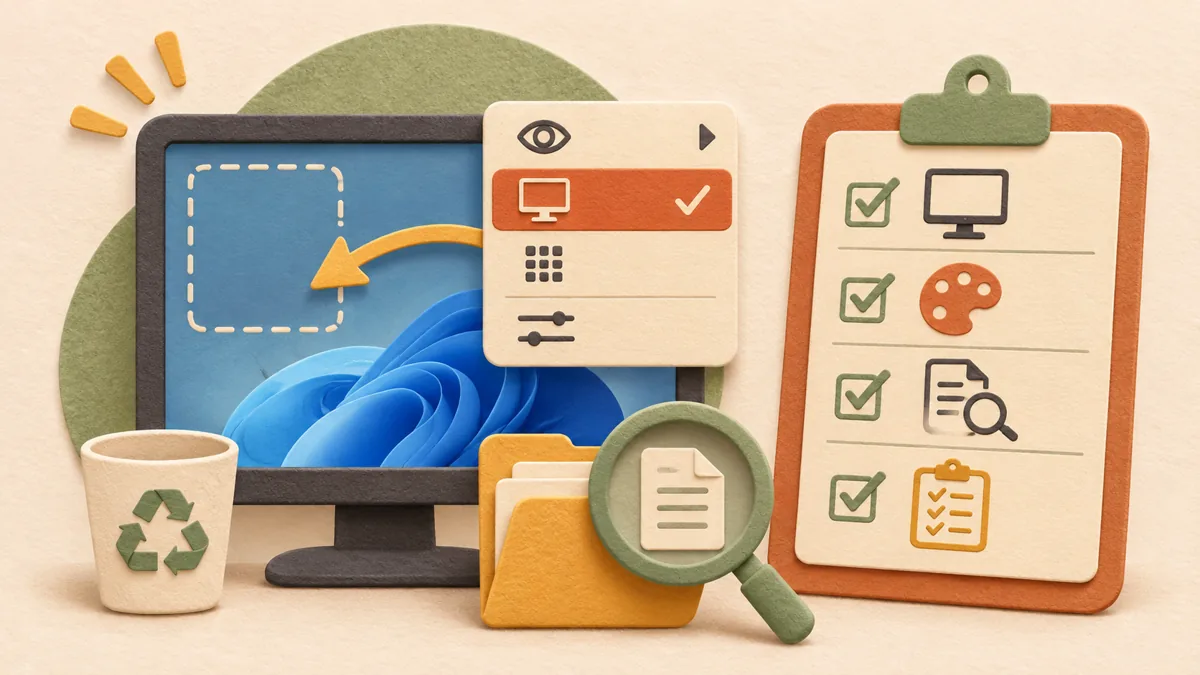
If the Recycle Bin or frequently used file icons that were on the desktop suddenly disappear, many people assume the files have been deleted. However, the icons are often simply hidden. Based on Microsoft Support documentation, this article outlines what to check before making the icons visible again.
1. Turn on desktop icons in the View menu
- Right-click an empty area of the desktop where there are no icons.
- Expand View.
- If Show desktop icons is turned off, select it. This single option hides or shows all icons at once.
If all the icons return using this method, the cause was the display setting. If you remember changing the icon size or spacing, check the size again under View in the same menu.
2. Check theme settings if only system icons are missing
Default icons such as This PC, Recycle Bin, Network, and User's Files are managed separately in the Settings app. Go to Settings → Personalization → Themes → Desktop icon settings and check whether the relevant items are selected. After changing the selections, click OK for the changes to apply.
Microsoft's documentation also notes that there is a separate option allowing themes to change desktop icons. If you selected the icons yourself, check this option as well, because changing the theme may change the icons again.
3. Determine whether the files are actually missing
Icons not being visible and files being gone are different issues. Open File Explorer and select Desktop in the navigation pane on the left. If the files are there, it is a desktop display issue; if they are not, consider whether they were moved or deleted. To check whether they were deleted, look in the Recycle Bin first.
4. Checklist before restoring them
- Before deleting or creating icons, first check whether the files remain in the Desktop folder.
- Creating multiple shortcuts with the same name can cause confusion, so check the original location before deleting an existing item.
- After changing the settings, check whether the icons appear immediately without signing out or restarting. If they do not, reopen File Explorer.
Related reading: How to recover a Windows window that disappeared off-screen and the keyboard shortcuts ↗, Organizing Windows startup programs: Three things to check before turning them off ↗
Source: Microsoft Support - Customize the Desktop Icons in Windows ↗
Sources and original article
Read the Korean original on Naver ↗
This article reflects public information available when it was written. Specifications, prices and schedules can change; check the linked official documentation.
This English edition was written and translated with AI assistance, with sources provided. For errors or additional information, please request a correction. Editorial policy